There are two people who search this question. One is buying a used phone and wants to know whether the seller's "never been near water" is true. The other owns a phone that went in the sink three weeks ago, seemed fine, and has now started doing odd things.
Both need the same knowledge: where the liquid indicators are, what they mean, and — more importantly — the symptoms of water damage that appear long after the phone has dried. Because the indicator tells you whether liquid got in. It does not tell you what the liquid has been doing since.
Checking a phone for water damage properly takes about five minutes, a torch and a SIM ejector. It can save a used-phone buyer several hundred pounds, and it can tell an owner whether the odd behaviour they are seeing is a coincidence or a countdown.
At Fone Doctors a striking share of the "mystery faults" brought to us — intermittent charging, a speaker that crackles, a camera that fogs — turn out on inspection to be water damage from an incident weeks earlier that the owner had dismissed. This guide is how to check before that happens.
Where the Liquid Contact Indicator Is
Manufacturers fit these precisely so that warranty assessors can tell whether a phone has been wet. They are small, they are hidden, and they are unambiguous.
| Device | Indicator location | What you need |
|---|---|---|
| iPhone (all models with a SIM tray) | Inside the SIM tray slot, on the side wall — visible once the tray is removed | SIM ejector tool or a straightened paperclip; a torch |
| iPhone eSIM-only (US models) | No SIM slot; indicator is internal and not visible without opening the phone | Professional inspection |
| Samsung Galaxy S and A series | Inside the SIM tray slot, and on some models a second one inside the charging port | SIM ejector; torch |
| Samsung Galaxy Z Fold / Z Flip | Inside the SIM tray slot | SIM ejector; torch |
| Google Pixel | Inside the SIM tray slot | SIM ejector; torch |
| Older phones with removable backs | On the battery, and often on the inside of the back cover | Remove the back cover |
How to check it
- Power the phone off.
- Insert the ejector tool into the small hole beside the SIM tray and press firmly. The tray pops out.
- Shine a bright torch into the empty slot at an angle. You are looking at the inside wall of the slot.
- Find the small rectangular or circular sticker.
| What you see | What it means |
|---|---|
| White or silver | The indicator has not been triggered. No significant liquid has reached this point |
| Red, pink or orange | The indicator has been triggered. Liquid has entered the phone at some point |
| Faded pink, or red at one edge only | Partial trigger — a small amount of liquid, or high humidity over a long period |
| Missing, or a clean rectangle where it should be | The indicator has been removed. On a used phone, treat this as a red flag — it is sometimes done to hide water damage |
An important limitation: the indicator only tells you about liquid at that location. A splash into the charging port that never reached the SIM slot leaves the indicator white and the port corroded. The indicator is one data point, not the whole picture.
The Eight Delayed Symptoms of Water Damage
This is the part that matters most, because it is the corrosion, not the water, that destroys phones — and corrosion takes days to weeks to produce visible faults.
| Symptom | What is happening | How soon after the incident |
|---|---|---|
| 1. Charging becomes intermittent or slow | Corrosion on the charging port contacts or the charging circuit. The most common first sign | Days to two weeks |
| 2. Crackling, muffled or dead speaker or microphone | Residue on the diaphragm; corrosion on the audio contacts | Days |
| 3. Condensation or fog inside the camera lens | Moisture trapped in the camera cavity. Often visible as a haze in photos | Hours to days |
| 4. Screen shows pink, purple or green tint, or bleeding patches | Moisture reaching the OLED panel or its connector | Days |
| 5. Phone runs warm at idle | Electrical leakage across corroded traces on the board | Days to weeks |
| 6. Battery drains unusually fast | Same leakage, drawing current constantly | Days to weeks |
| 7. Touch becomes erratic — ghost touches, dead zones | Moisture under the glass or on the digitizer connector | Hours to days |
| 8. Random restarts, shutdowns or a phone that will not turn on | Corrosion has reached a critical component or created a short | Weeks — the delayed failure |
Any one of these on a phone that has had any liquid contact — a splash, rain, a steamy bathroom, a damp pocket — is worth taking seriously. Two or more together on a phone with a red indicator is a phone that should be professionally cleaned this week.
Checking a Used Phone Before You Buy
Five minutes at the point of sale. Do all of them.
- Ask to remove the SIM tray and check the indicator with your phone's torch. A seller who refuses has answered the question.
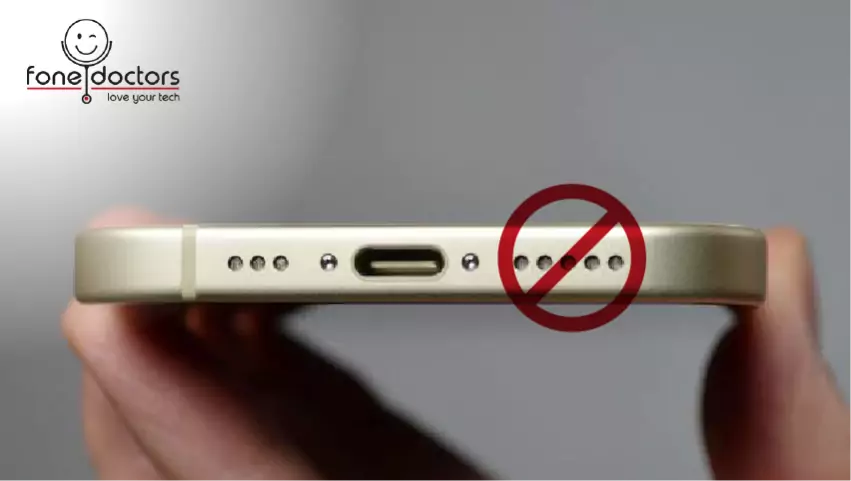
- Look into the charging port with the torch. Green or white crust on the contacts is corrosion. Any discolouration is a warning.
- Look into the speaker grilles and the headphone jack if there is one, for the same crust.
- Check the camera lenses for fog and take a photo pointing at a lamp — haze suggests moisture inside.
- Check the screen edges at maximum brightness on a white background for pink, purple or yellow tinting at the perimeter, which suggests moisture has reached the panel.
- Plug in a charger and watch for a stable charging icon. Flickering or slow charging is a warning.
- Play music through the loudspeaker at full volume and listen for crackle.
- Check the phone is not warm after five minutes of sitting idle.
- Look at the screws inside the SIM slot and around the port if visible — rust-coloured screw heads are a giveaway.
- Ask directly. Then compare the answer with what you found.
A phone that passes all ten is very likely clean. A phone that fails the indicator or shows corrosion in the port is a phone whose price should reflect a likely repair — or one to walk away from.
Why Corrosion Is the Real Problem
Water on its own rarely kills a phone. What kills phones is what happens after.
When liquid — particularly tap water, seawater, or anything sugary — reaches the logic board while there is any residual current from the battery, it drives electrolysis. Metal is stripped from the solder joints and component legs and redeposited as green or white crust. The reaction continues as long as there is conductive residue and moisture, and since the residue is hygroscopic — it draws moisture from the air — it continues in a phone that feels completely dry.
This is why phones "survive" water and then fail three weeks later. The water dried. The corrosion did not stop.
It is also why the indicator alone is not a verdict. A white indicator with corrosion in the port is a wet phone. A red indicator on a phone that was professionally cleaned immediately after the incident may be a perfectly healthy phone. Symptoms and inspection tell you more than the sticker.
What To Do If You Find Water Damage
If it just happened
Turn the phone off. Do not charge it. Do not put it in rice. Dry the outside, remove the case and SIM tray, and get it to a specialist within 24 to 48 hours. Our guide to the first hour after water contact covers this in detail.
If it was days or weeks ago and symptoms are appearing
The corrosion is established and spreading. The phone needs to be opened, the board removed, and the residue cleaned off — which no drying method can achieve. Bring it to our London clinics for a free assessment. The sooner it is cleaned, the fewer components will need replacing.
If you are buying and found a red indicator
Either negotiate the price down to reflect a likely cleaning and repair, or walk away. If you go ahead, have it assessed before you rely on it — and before any return window closes.
If you own it, the indicator is red, and there are no symptoms
You may have got lucky — a small amount of liquid that evaporated without reaching the board. But it is worth a free inspection. A technician looking under the shielding cans with a microscope can tell in minutes whether there is corrosion waiting to cause trouble, and a preventive clean is far cheaper than a repair.
What Professional Assessment Involves
- Free inspection. Indicator checked, ports and grilles inspected under magnification, and the eight symptoms tested for directly — charging current measured, audio tested, camera checked for fog, screen checked for tint, idle temperature and current draw measured.
- Where indicated, the device is opened and the board inspected under a stereo microscope. Corrosion under the shielding cans is invisible from outside and this is the only way to find it.
- Honest verdict. Clean, contaminated but recoverable, or damaged with specific components affected — and a fixed price for whatever is needed.
- Ultrasonic cleaning where residue is present: the board is bathed in a specialist solution and agitated at ultrasonic frequency to lift residue from beneath components.
- Corrosion removal and component replacement under microscope where needed.
- Staged testing on a bench supply before the battery is reconnected.
- Reassembly with fresh seals, and the liquid indicator noted in your repair record.
Our water damage recovery service does this on every device with a suspected liquid history, with free diagnostics and no fix no fee — because with liquid damage, nobody can honestly promise an outcome before the board has been seen.
Related repair guides
See also the first hour after water damage and recovering data from a dead phone.
Key Takeaways
- The liquid contact indicator is inside the SIM slot on iPhone, Samsung and Pixel. White is clear; red means liquid got in.
- The indicator is one data point. Corrosion in the port, fog in the camera, and delayed symptoms tell you more.
- Corrosion, not water, destroys phones — and it continues for weeks after the phone feels dry.
- Intermittent charging is the most common first symptom. Crackling audio and camera fog are close behind.
- Buying used: check the indicator, the port, the camera and the screen edges. A missing indicator is a red flag.
- Found water damage? Professional cleaning within days keeps it cheap. Waiting turns it into component replacement.
Free Water Damage Inspection
Indicator check, port and grille inspection under magnification, direct testing for the eight delayed symptoms, and an honest verdict. Ultrasonic cleaning and board repair where needed, with no fix no fee. Walk into our London Bridge, Liverpool Street or Canary Wharf clinics, or book a collection.
Book an inspection: https://fonedoctors.co.uk/booking/device
See all repair prices: https://fonedoctors.co.uk/prices
Call the clinic: +44 20 7403 9111
Frequently asked questions
Power off, eject the SIM tray, and shine a torch into the empty slot. The liquid contact indicator is a small sticker on the inside wall — white means untriggered, red or pink means liquid has entered. Then check the charging port and speaker grilles for green or white crust, and the camera for fog. Symptoms like intermittent charging or crackling audio matter as much as the indicator.
Share with your community
Get in touch
Questions about this repair? Send a message or book a slot at a London clinic.